Make a fillable PDF from a Word document
Upload the .docx. We turn it into a PDF, find the blanks you drew and add real form fields, so you do not need Acrobat.
Upload your form
Choose a PDF, a Word file or an image from your files, or photograph a paper form.
PDF, Word (.docx), JPG, PNG, WebP, HEIC, GIF and BMP. Free account required, no credit card.
Your first download is free, with no watermark. After that: a watermark, or a $7 one-time pack (25 clean PDF downloads + 25 AI credits). AI detection covers up to 15 pages per run.
By uploading, you confirm you have the legal right to use this document.
Build and preview fields free. Exporting clickable fields needs a one-time pack ($7) or a monthly plan.
Why Save as PDF is not enough
Word can make a document fillable inside Word, with the Developer tab content controls. Those controls stop at the PDF boundary: Save As PDF and Export write a flat page, and the controls come out as printed placeholder text, not as form fields. Microsoft’s answer to that exact complaint is that there is no option in Word to create a PDF form. Microsoft Q&A. So the layout is Word’s job and the fields are a PDF tool’s job. This page does the second part in one step.
From Word to a fillable PDF in four steps
Upload your Word file
Drop in the .docx. We convert it to a PDF first, so the layout you see is the layout the recipient gets. Nothing is stored for the conversion itself.
Check the detected fields
Field detection looks for the blanks you drew in Word: underlined lines, table cells and checkboxes. Move, resize, rename or delete anything it got wrong. Previewing and editing is free.
Name and type the fields
Give each field a clear name, mark checkboxes and multi-line areas, and the exported PDF carries those names into every viewer.
Export the fillable PDF
Download a standard PDF with real form fields. Anyone can type into it in Acrobat Reader, a browser or on a phone, with no JustFill account.
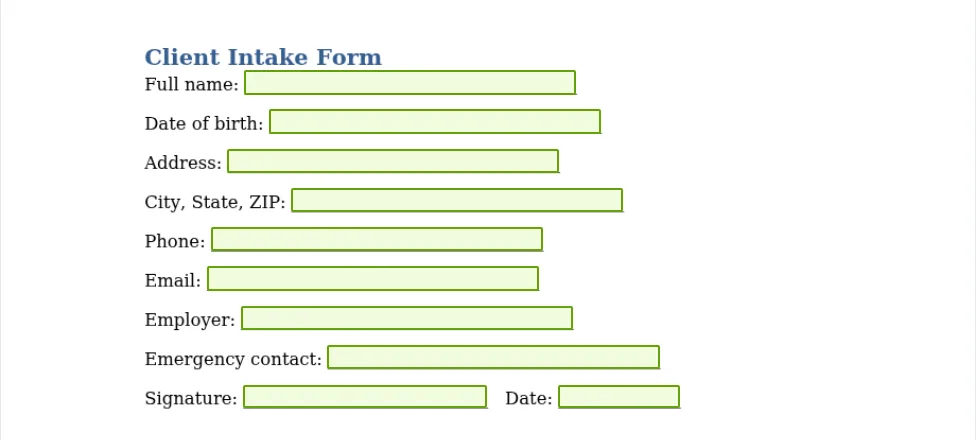
What detection finds in Word forms
- Labels followed by an underscore line ("Full name: ________")
- Tables where the empty cells are the answers
- Checkbox glyphs next to a label, including Yes / No pairs
- Dotted or underlined tab leaders
- Signature and date lines
Checked on sample Word forms built with underscore lines, tables, checkbox glyphs and dotted leaders. Always review the preview; detection is a proposal, not a promise.
Where it needs a hand
- Text in square brackets such as [DATE] or [CLIENT NAME] is not a blank, so it is not detected. Add the field by hand with the Draw tool, or replace the placeholder with a line in Word.
- The file must be a .docx up to 5 MB. Older .doc files: open them in Word and Save As .docx, or Save As PDF and upload that.
- Files that link to or embed other content (linked pictures, embedded objects, macros) are refused. Save those as a PDF from Word instead.
Frequently Asked Questions
Try it on your own Word form
Upload the file, see which fields are detected and decide afterwards.
Free account. No credit card required.